
Please note that not all clients will have this feature available - to discuss further, please contact Customer Support.
Where is this located?
Users with access to the Corporate Administrator workgroup will be able to find this inside their User Profile, which is the person shaped button at the top right side of the main dashboard screen.

From the User Profile, there will be a button for "Account Administration" on the right.
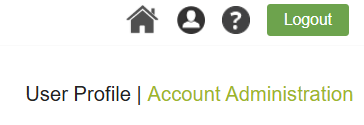
Scroll down to the "Account Customization" section and click on the "Colors Logo" button.

What can be edited here?
Admins can upload an image of their company logo and put in two colors as branding for various areas of the system, such as buttons and fields visible to signers and submitters alike. These can also show up in certain email messages too.
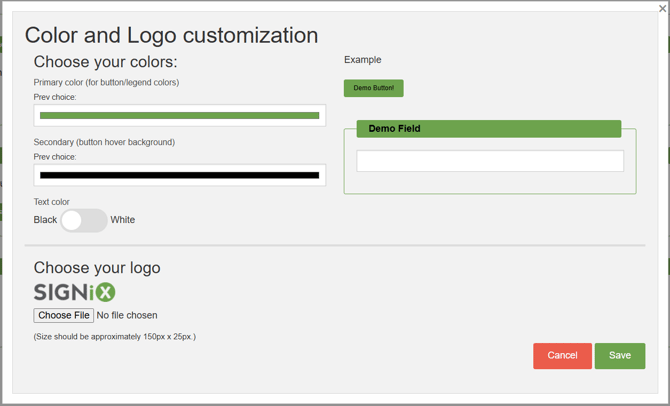
The Primary and Secondary colors can be chosen by clicking on the colorful bar shown in the "Preview Choice" area on the screen.
Text color can be toggled between black and white, depending on how dark or light your custom colors are on the screen.
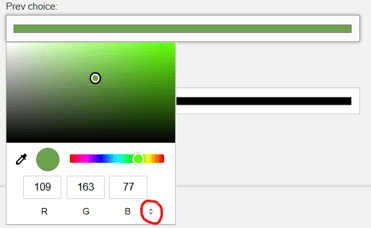
You can either manually adjust the colors, or you can enter a few different options, such as RGB, HSL, or Hex codes. Admins can ask their marketing teams for advice here.
The logo should be relatively small in size, and you'll see the standard SIGNiX image as an example of just how small it should be, plus it lists the info in pixels: 150px x 25px
An image with a transparent background is best, but a white background may also look fine in most circumstances.
Use the "Choose File" button to search your computer for a JPG or PNG to upload.
You should see updates on the screen in real time to help you make decisions.
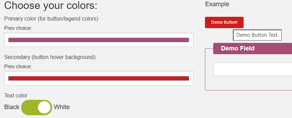
Click the "Save" button to capture your changes, or the "Cancel" button to start over without saving any changes yet.