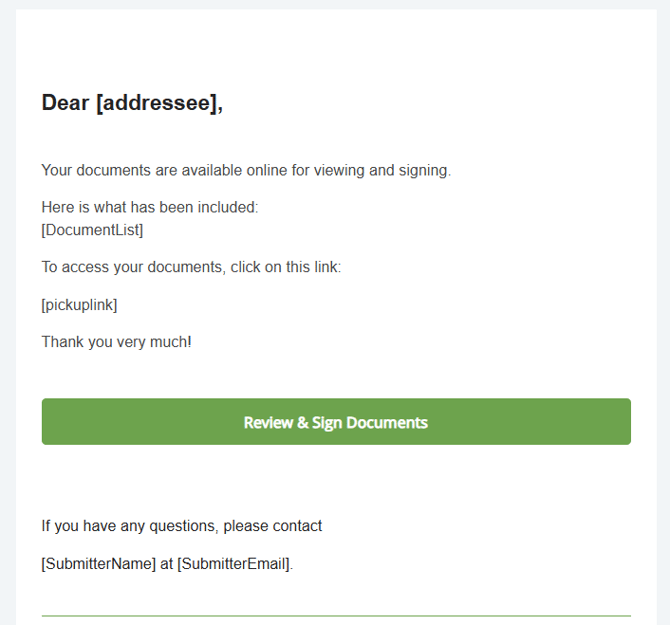
Please note that not all clients will have this feature available - to discuss further, please contact Customer Support.
Where is this located?
Users with access to the Corporate Administrator workgroup will be able to find this inside their User Profile, which is the person shaped button at the top right side of the main dashboard screen.

From the User Profile, there will be a button for "Account Administration" on the right.
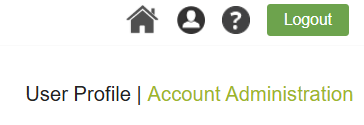
Scroll down to the "Account Customization" section and click on the "Email Editor" button.

What can be edited here?
Admins can edit the appearance and text of a variety of different email messages that will be sent from their company account in SIGNiX to their signers / clients during the course of a transaction, from start to finish.
-
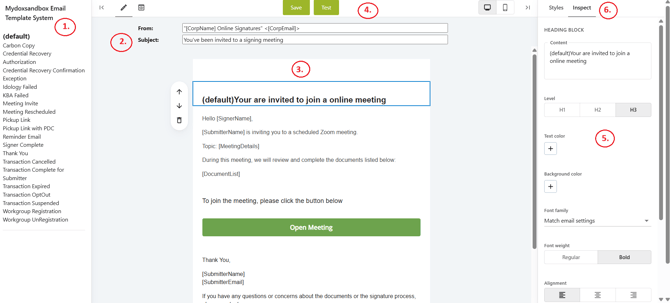
On the left side of the screen is a list of different email types, each of which can be edited with unique details.
- In the middle, the Subject of the email can be edited.
- A preview of the email and its included elements is found in the middle.
- There are Save and Test buttons at the top to capture changes and send yourself a copy to see how the final product will look.
- When an element is selected in the middle, it's various settings will appear on the right side for adjustment.
- Also on the right side is the "Inspect" area that holds the main element settings, and then the "Styles" area that allows for adjustments to the appearance, such as colors, font, etc.
What Types of Emails are there?
While all accounts will see the same list of email types, not every item on the list will apply to every client - features turned on or off will determine some of these types.
Default - this is going to be your basic message template.
Carbon Copy - the email that goes out when the CC List feature is used.
Credential Recovery Authorization - this is Password Reset
Credential Recovery Confirmation - this confirms Password has been Reset
Exception - if an error occurs, this message can be sent
IDology Failed - if a signer fails the ID Verify Authentication method
KBA Failed - if a signer fails the Knowledge Based Authentication method
Meeting Invite - the email sent for a Zoom meeting
Meeting Rescheduled - the email sent for when a Zoom meeting has been changed
Pickup Link - this is the email that goes out to the signer when a transaction is started
Pickup Link with PDC - this is for accounts that use a Personal Document Center
Reminder Email - if a few days have passed, this reminds someone to sign
Signer Complete - this goes to the signer confirming the Transaction is Complete
Thank You - this goes out when someone is finished signing their portion
Transaction Cancelled - this goes out when the status changes to Cancelled
Transaction Complete for Submitter - the person who created the transaction is alerted when it is Completed as a whole
Transaction Expired - this goes out when the transaction isn't completed within a certain amount of time and the status changes to Expired
Transaction OptOut - when a signer chooses not to complete, this is sent to the submitter so they are aware
Transaction Suspended - when a transaction is suspended for a reason such as a bounced email, the Submitter is sent this message
Workgroup Registration - when a new user is added to the account, this is the message they receive for login
Workgroup UnRegistration - when a user is removed from the account
What elements can be edited?
Text in the message can be changed, along with buttons included for various actions that you want the signer or submitter to perform when they get the message.
The color of the text can be changed - however black is recommended for most situations, and white for buttons.
Most of the text of the email can be entered directly into the elements shown on the screen. However, there are dynamic pieces of data that very or change from transaction to transaction, and will need to be injected into the email using predefined Tags.
Please Note: Do not change the "From" section of the email template, as this must remain as it shows in the default so that emails can be properly sent out.
What are Tags?
These pieces of data can be used as a short hand way of entering dynamic information into the email. See below for the tags themselves, which must include the bracket symbols on either side with no spaces included.
[CorpName]
The name of your company on the SIGNiX account.
[SignerName]
The name of your signer.
[addressee]
The name of the email message recipient, likely the signer or submitter.
[pickuplink]
The signer's link to access the transaction for signing.
[DocumentName]
The title of the transaction.
[DocumentList]
The list of documents included on the transaction.
[SubmitterName]
The name of the person who created the transaction.
[SubmitterEmail]
The email of the person who created the transaction - can be useful if you want signers to contact them directly for help with questions about their documents.