
Digital Billboard is a new SIGNiX feature which can be used to provide a "call to action" for both signers, when each person completes the signing process.
This is ideal for an upsell to additional products and services, or to point the user to relevant information, such as the next step in a process for example.
The call to action can be configured per transaction type, per signer and per transaction for Flex API clients with an integrated account.
Developers looking to learn more about the Digital Billboard feature can conveniently request a developer account and access additional information through this link.
Contact the SIGNiX sales team to discover how Digital Billboard can drive growth for your organization.
For MyDox Clients:
You don't need a developer to start using a standard digital billboard for all transactions in your company account.
You can get started on this new feature with two simple items:
- The URL of an Image that you want to have appear on the billboard.
- The URL of a link where you want the signer to go when the click on the image.
Where is this located?
Users with access to the Corporate Administrator workgroup will be able to find this inside their User Profile, which is the person shaped button at the top right side of the main dashboard screen.

From the User Profile, there will be a button for "Account Administration" on the right.
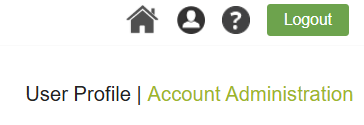
Scroll down to the "Account Customization" section and click on the "Digital Billboard" button.

What does the Customization look like?
You can enter the two URLs into the screen shown below. An example is included.
The image needs to be hosted online somewhere, so that you can obtain a URL for it, either from your marketing team or by right clicking on the image and selecting to "Copy Image address" so that you can paste it here into the billboard.
The same goes for the Link URL - this should likely be a page on your company website that brings the signers somewhere specific to continue onto next steps once they are done signing your documents.
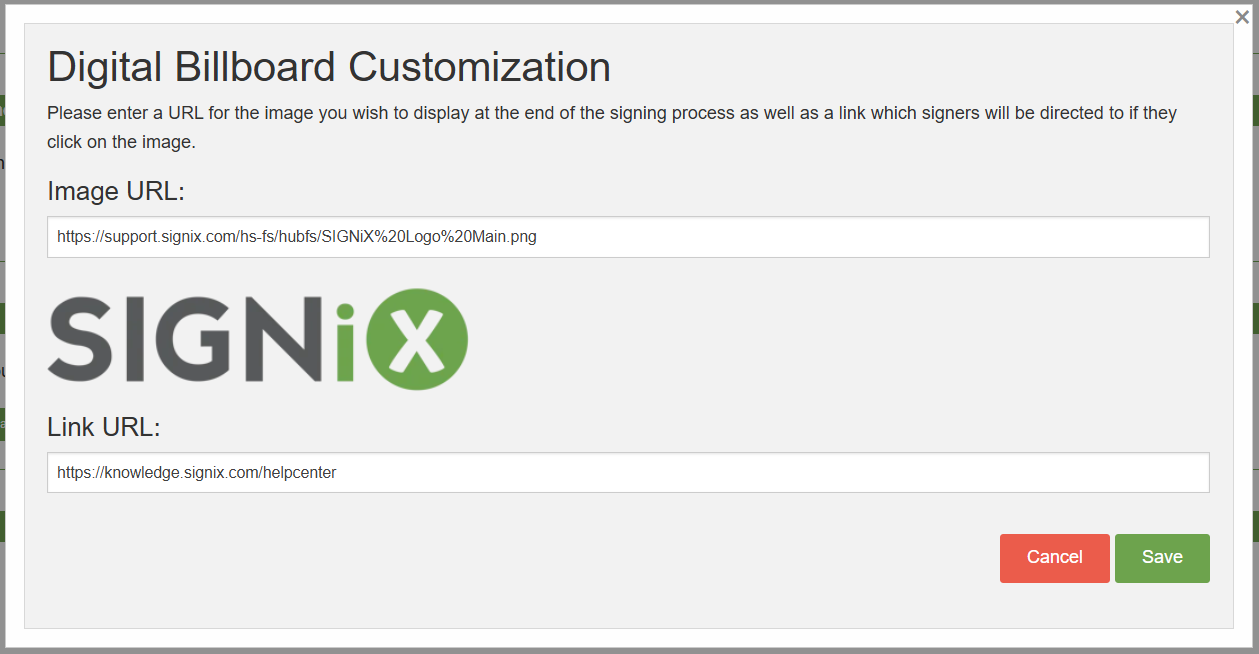
In this example, the image URL is for a SIGNiX logo that is not too large as it will appear exactly to size here on the screen.
The Link URL goes to the SIGNiX Customer Support Knowledge Base, where our FAQ articles are located in case the signer has any questions for us.
Clicking the "Save" button is required to capture your changes.
Simply click on the "Digital Dashboard" button again to see your changes live, in case you need to make adjustments to how it looks or which URL you are using.