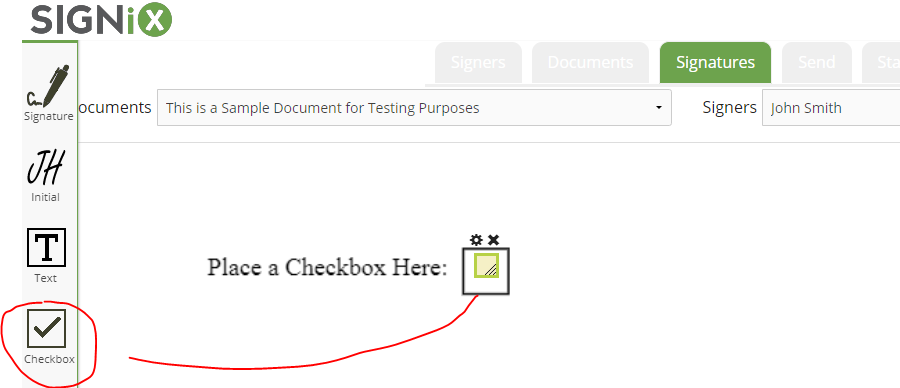
When you need to have a signer select an option on the document, you can place a checkbox for them to click on.
You can even have the box pre-checked if you want to go ahead and fill out the form in advance.
If you place multiple check boxes, they are all independent from one another.
Checkboxes are useful when your document is a form that has spaces for the signer to make selections to indicate certain options they wish to opt-into for example.
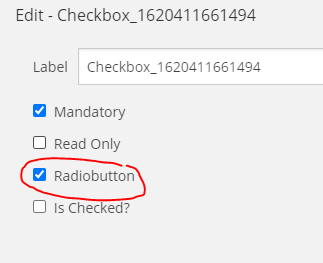
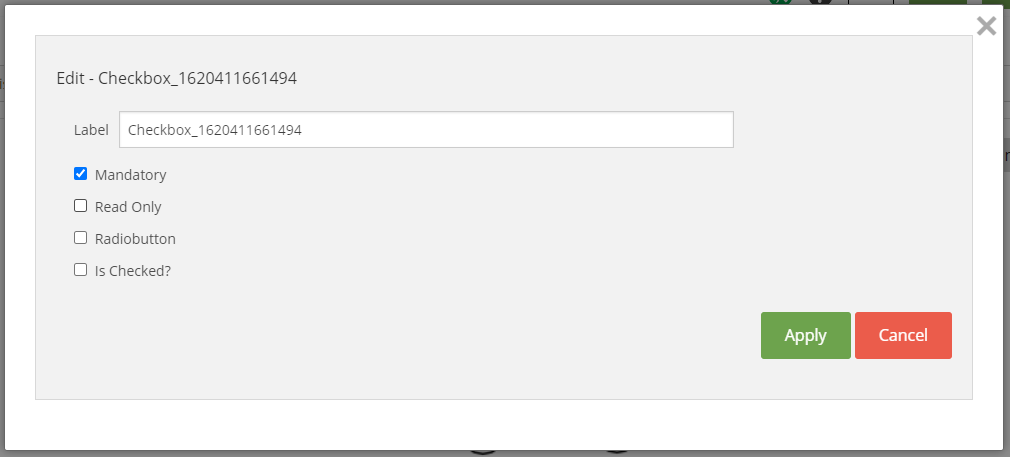
Checkbox Settings:
- "Mandatory" means the box has to be checked by the signer before they can complete the signing process.
- "Read Only" means the signer does not have to check the box, it will be optional during signing and they can skip it.
- "Radio Button" is covered in the next point below.
- "Is Checked?" means you as the submitter can already check the box for your signer, and they will not have to do that during signing because it will already be pre-checked.
Radio Buttons:
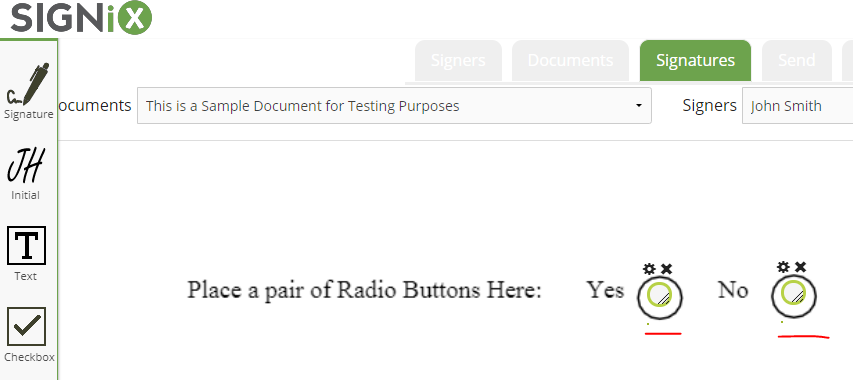
You can turn a single checkbox into a pair of radio buttons, for situations where you signer needs to choose one of two options, like a "yes or no" question.
This can be done by using the gear icon to access the checkbox settings.
Radio buttons are connected to one another, so only one can be selected by the signer, not both.
You can increase the number of buttons, so that the signer can select one of many options, but not multiple options, which sets it apart from Checkboxes.
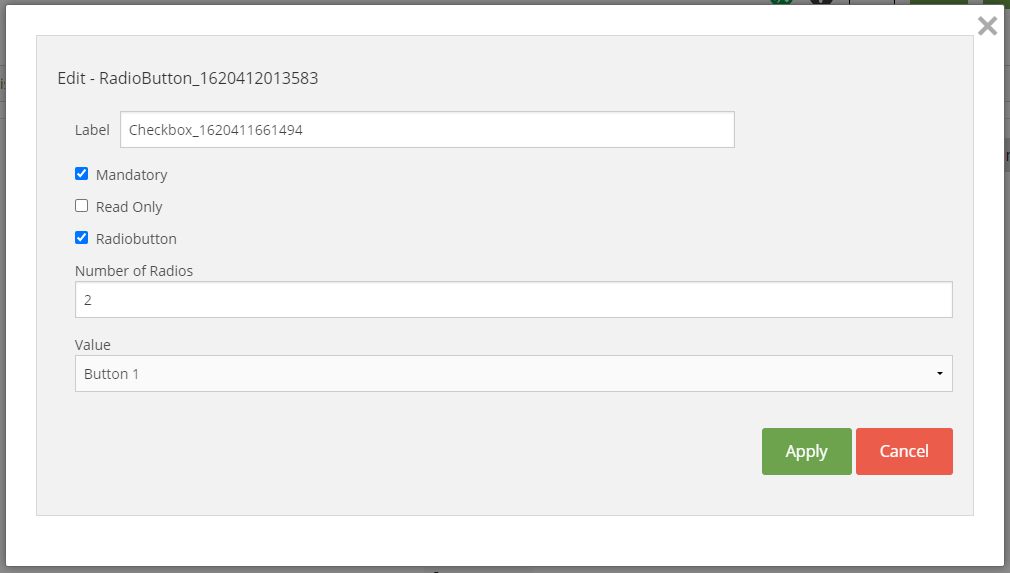
Radio Button Settings:
- "Mandatory" means a button has to be clicked by the signer before they can complete the signing process.
- "Read Only" means the signer does not have to click a button, it will be optional during signing and they can skip it.
- "Radio Button" should remain checked to keep these buttons, as unchecking this setting will turn them back into a Checkbox.
- "Number of Radios" means you can have more than 2 buttons, which are all connected. This is good for when signers must select one option from a list of several.
- "Value" means you can already pre-click one of the buttons for your signer and they will not have to do that during signing because it will already be pre-checked.