
Note: Some clients do not see the Send screen due to how their company account is setup, so this may not apply to everyone.
You may be used to seeing the Email Message area of a new transaction's Send screen.
This feature has received an update to address certain aspects of how emails are sent, so there are going to be some new rules that users must follow to use this feature.
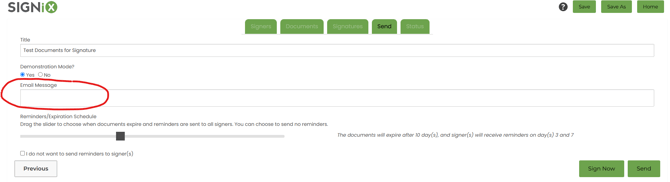
What has changed?
This Email Message box can only work with plain text, without formatting.
You can enter Letters and Numbers, along with some very basic punctuation such as periods, commas, parentheses, dashes, underscores, and colons.
Aa 123 . , ( ) - _ :
You cannot enter special characters such as these symbols on the keyboard:
$ # @ ! % * & ^ / \
You also cannot format this message like a regular email. What does that mean?
You cannot use the "enter" button on the keyboard to continue onto a new line.
You cannot use bold or italics, nor include hyperlinks of your own into the message.
You cannot include images nor attach anything to this email message.
Examples of what you Can and Cannot do:
Acceptable Message:
Hello, this is John Smith and I am sending you documents to sign securely online. Thank you.
Unacceptable Message:
Hello,
This is John Smith and I am sending you documents to sign securely online!
Thank you
I am seeing an error message

This error means you have included something in the message that is not acceptable.
Check again and remove anything that is not simple plain text - especially the use of the "enter" button.
This is a text box, you will enter a block of text with no formatting and it will be included in the email message to the first signer along with some default messaging.
What the email message looks like to signers:
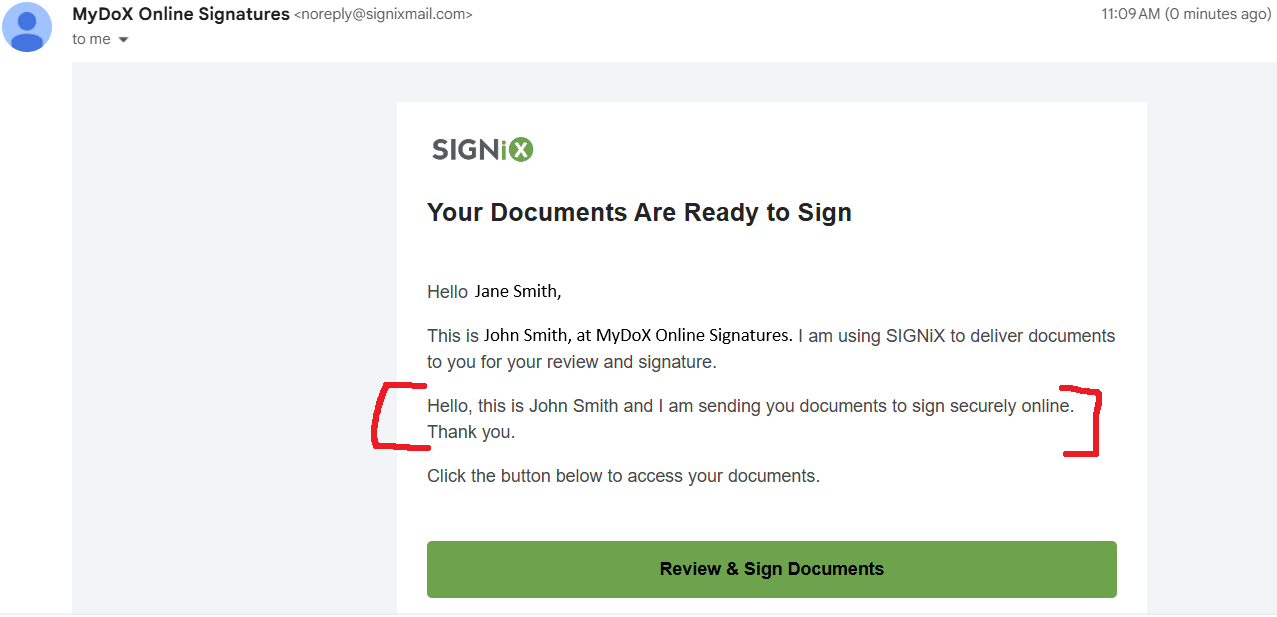
You can see from the above example, the custom email message is rather redundant, when adding to the default messaging that comes with most SIGNiX transactions.
You could consider using the custom email message to instead include other relevant information for your client, such as what to do after they are done signing, or letting them know the types of documents that are being sent, in reference to a previous conversation you had with them leading up to the online signature process.
What happens if I leave the email message blank on the Send screen of the new transaction?
A default message will still be emailed to your client even if the message area is left blank on the Send screen.
You do not have to enter anything into this area of the Send screen, it is perfectly okay to leave it blank and send out the documents for signature.
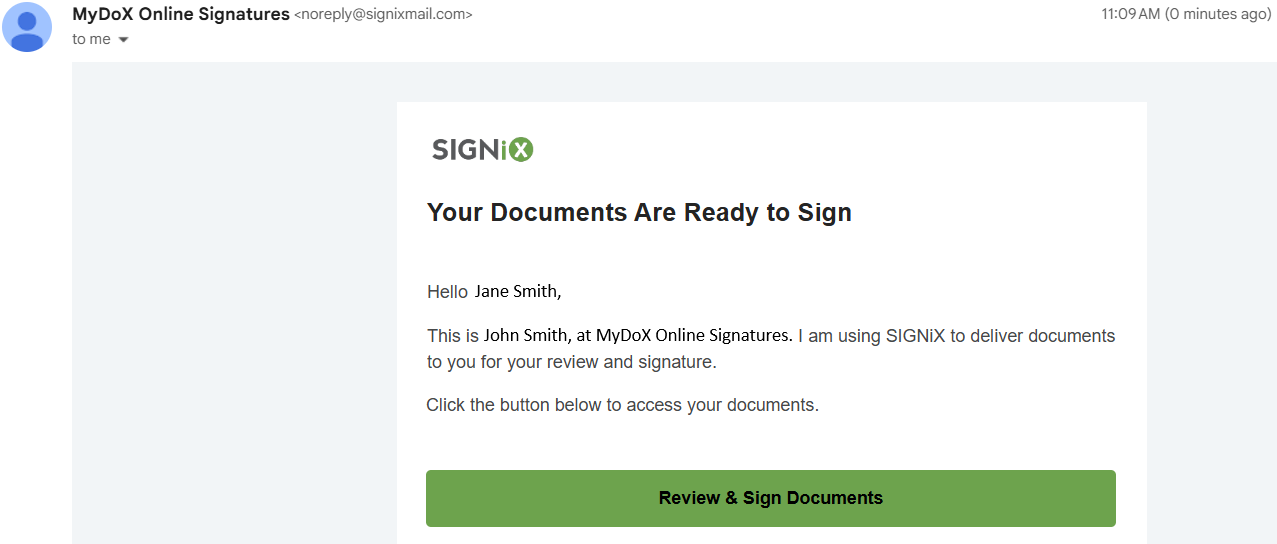
Some SIGNiX Clients who have their own Team accounts with Admin users may be able to customize their own default messaging through the Brand Center.