When a transaction is Complete, you as the notary should download a copy of everything that you need for your own records.
SIGNiX will keep copies as well, for several years due to state requirements for RON vendors, however the notary's own records should be keep up to date.
Please note that the screenshots in this article show the Google Chrome Browser, on a Windows Computer. Some icons, notifications, or buttons may appear differently if you are using another browser, or an Apple computer.
Steps for Download:
- Click on the name of the transaction to open it up to the Status screen.
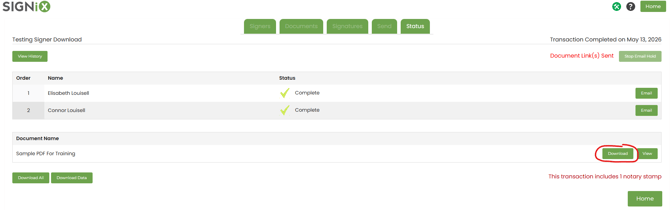
- To receive just the signed document, you can use the "Download" button beside the document in question on the right side of the screen.
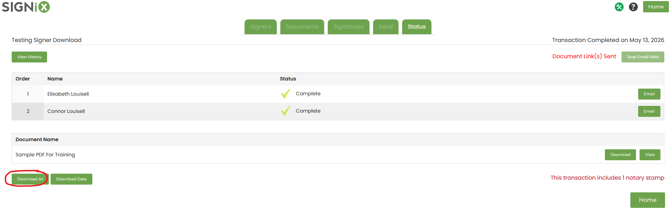
- To receive not only the signed document, but also the Audit Trail and the Certificate of Completion, you should instead click on the "Download All" button on the left side of the screen below where the document is listed.
- After a few moments, your browser will give you a small notification that the download is Complete.
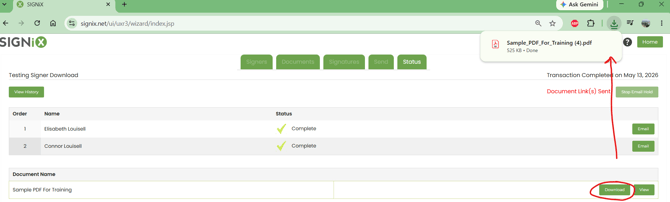
- If you click on this notification, it is common for the document to then be opened inside your browser.
However, the action of Downloading actually saves the document onto your computer itself, usually in the "Downloads" Folder where you can move it somewhere else afterwards.
Just because you opened it in your browser this time does not affect the download status or change the fact that the document is already saved to your computer.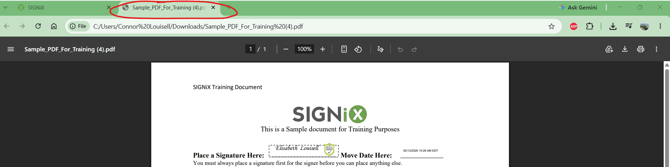
- In general, viewing the document in the browser may not accurately display all of the digital information in a signed and notarized document. Think of this as a preview in the browser.
We highly recommend opening the document on your computer itself, outside of the browser, using a PDF reader program instead.
Adobe Acrobat Reader is a free program to install on your computer and it displays completed documents very well. - Minimize your browser, and go into the "File Explorer" on your computer, often an icon shaped like a folder.
From there, open your "Downloads" folder to locate the document you just downloaded and saved to your computer.
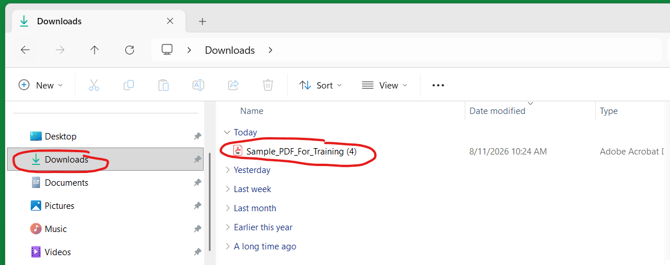
- If you used the "Download All" button to receive the documents, the audit trail, and the certificate of completion, then you will see a zipped folder in your Downloads.
For Windows computers, it is recommended to "Extract" the files, which saves them into another folder and "unzips" them so the files are easier to open and move.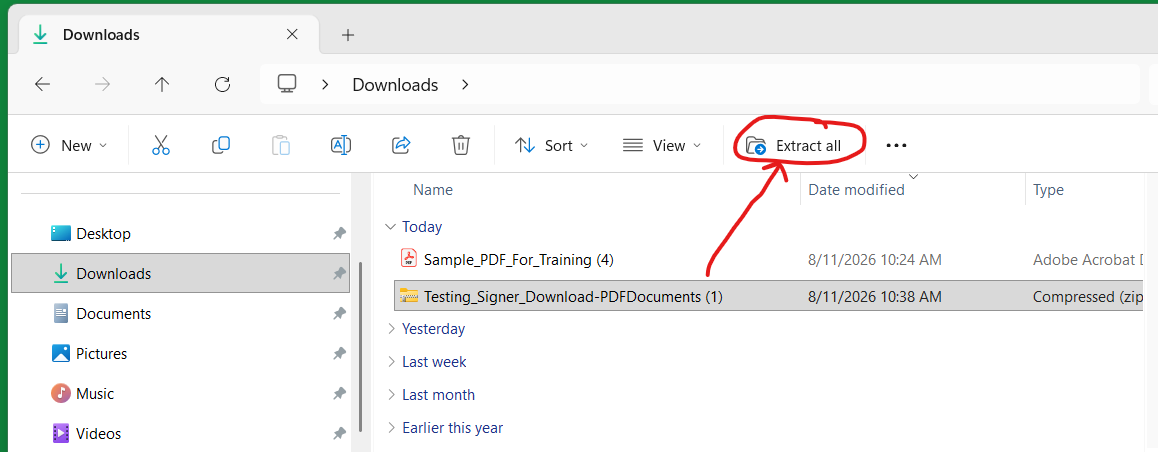
- You should be able to click on the document file and open it up in a PDF Reader program. These examples will show Adobe Acrobat Reader.
If your computer opens the file in the browser again, that would be a setting you would have to change, so that your computer defaults to opening files like this in a specific program instead.
A quick work around is to "right click" on the file and select the "Open With" option to select which program you want to use in the moment.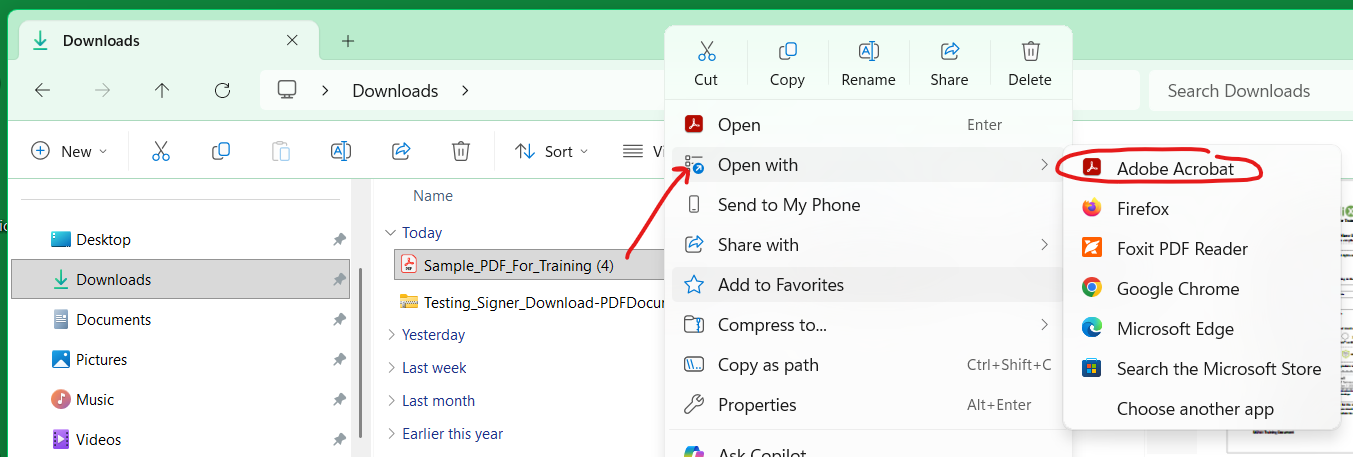
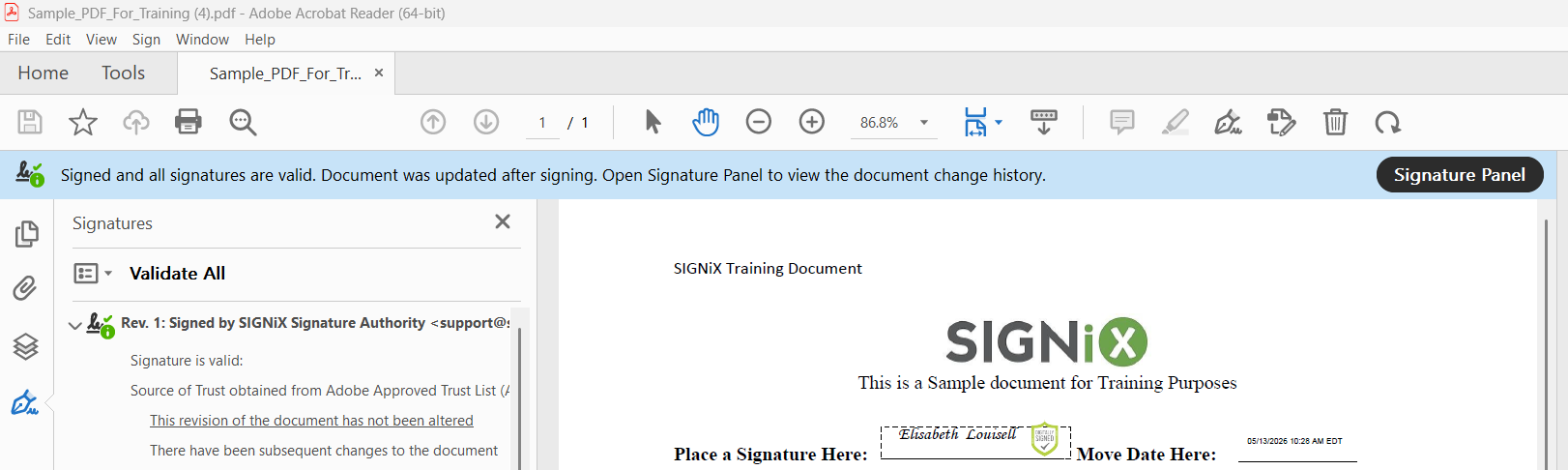
- When Opened in Adobe, you should see a blue banner at the top that shows the signatures are valid, and you can open a Signature Panel to see more details, or click on individual signatures to see their details.
If you are a notary, and you see text covering your notary stamp on a signed document, that is often a clue that you've opened the document inside your browser. Please use the above steps to open the document in a PDF Reader program on your computer instead, and the text should be correctly displayed below your stamp.
My documents always open the browser, now what?
You can change your computer settings, to tell it which program to use by default when opening certain types of files.
The steps for changing this type of setting will be different for every computer and operating system, so you may want to search online for instructions.
It may be helpful to search key words such as:
"how to change default PDF program on my Windows 11 computer"