
There are many uses for the History of a transaction, from checking on the status of a signing still in progress, to helping uncover what might have caused a potential error.
The History is a running log of events, showing actions taken by users who have interacted with the transaction in some way.
Where is the History found?
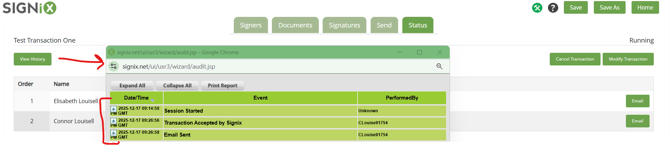
The history can be found on the Status page of the transaction, using the "View History" button found on the left side. Clicking the button should open a smaller window to display the list of events, which can be expanded on and even printed/saved.
There are three columns to the History window:
- Date/Time - this is always shown in GMT which is an international standard time that our system uses to log events across all transactions. Signature date fields on documents will have specific time zones according to the account's settings.
- Event - this will have the general name for each action, and then they can be expanded to show greater detail when available.
- Performed By - this is the UserID of the person who performed the action.
- You might see your own there, if you are the submitter creating the transaction.
- Your signers will have one, though they won't have to know it in order to complete the signing process.
- You might also see a company or account name listed, if the action was performed by some type of automation.
- Unknown is also common to see, it may take another action before the system can confirm exactly who the user is that is interacting with the transaction.
What do the History events mean?
Every transaction can have its own unique series of events, however there are many which will be common across the board.
- Session Started - this means that a user logged in to the SIGNiX system to interact with the transaction. If you see this as one of the first events, it would indicate the Submitter logged in to Create the transaction. Expanding this event will show the IP Address of the user, and what type of device they are using.
- Transaction Accepted by Signix - this means that the transaction was Sent
/Started and is ready to be signed. Expanding this event gives many details about the transaction in the beginning of the process. Integration clients may find this event helpful when diagnosing an error or issue. - Email Sent - this often happens at the start of a transaction, and then again later as the signers complete and the system moves along to the next person in the order. Manual email can also be sent out from the Status screen, though we caution against sending emails out of order to avoid confusion. Expanding this event will show the email address where the message was sent, and the body of the message itself, including the link used for signing.
In some situations, checking the Email Sent in the History of a transaction is a good way to find the link that signers need to use. If emails are being delivered very slowly, this is a good work around. More info here.
- Transaction Suspended - this shows up when the status of the transaction changes. Expanding this event should show you the reason for the Suspend, such as a Bounced Email that couldn't be delivered to a signer, or if no reason is given, that means the user associated with that event used the "Modify Transaction" button to suspend and make edits.
- Edits made to the suspended transaction, such as changing a Signer's information, adding or removing documents, may be recorded as their own events in the History.
- If a suspend happened due to a bounced email, it would be best to address the email issue before Resuming the transaction.
- There should be a "Transaction Resumed" event following this one.
- Signer Events - there are a number of different events that will appear when the signer logs in and goes through authentication. Some examples are below, but this does not cover all possibilities.
- Shared One-Time Passcode Sent - this means that two factor authentication was used for the signer, and they clicked the "Accept" button during login to trigger an SMS text to be sent with the code.
- Esign Consent Accepted - signers have to accept legal consent to sign digitally before they can proceed through login.
- User Entered PIN - this would indicate that a password was entered.
- Document Signed - this shows when a signer clicked on the "Sign" button to place their signature on a document in the transaction.
- Opted Out - this shows up when someone logs out of the transaction before they are finished signing, and the system will ask them for a reason why they are leaving, logging it here. However nothing can be logged if the signer closes the browser/window instead of logging out.
- Other Status Events - certain changes in status will be shown here, such as Cancelled, and Complete. For transactions that Expire, there should be Email Sent events that show the notice of inactivity emails that count down until expiration.
Notary Related Events
Some clients who are performing notarizations may see additional events related to their transactions.
- Online Meeting Created - this event shows that the notary scheduled a Zoom meeting through our system. This event should also be followed by several Email Sent events, showing that all parties involved in the meeting were sent a link to join Zoom, along with the date and time chosen by the notary.
- Verification Result - if the notary selected certain authentication options for their signers, with an ID picture involved, this event will show whether the notary passed or failed the picture during login.
- Notary Information Added - this logs what the notary entered into their Journal during the signing process. There should be one event per notary stamp/seal.
- Notary Seal Added to Document - this should show the notary's commission information, with one event per stamp/seal included on the transaction.