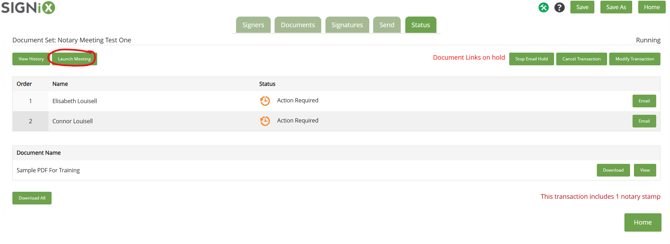
After your notarial transaction has been created with a notary signer included, you should be prompted after the "send" step to schedule a Zoom meeting with your client(s) so that you can meet with them online.
Many states require an audio / visual meeting to take place and be recorded during the RON process, and SIGNiX offers access to Zoom for this purpose.
Want to skip the Zoom meeting and use another platform? Click here for instructions.
Steps to Schedule a Zoom Meeting
Your transaction must be created and Sent, then you should see a prompt to "start a Zoom meeting" with an explanation of what to do.
You will see the signers listed, with everyone selected by default. If you need to meet with one of the signers at a later time, you can uncheck their name from the meeting. The notary must always be present on the meetings and cannot be uninvited.
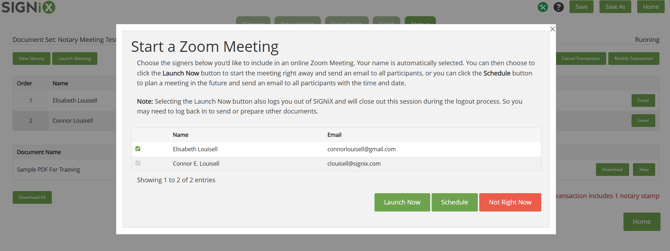
You can click on "Launch Now" if you want to start the Zoom meeting immediately. This will log you out of SIGNiX and open Zoom on your browser. This will also send your client an email to join the meeting immediately too.
If the client is not ready, you can instead use the "Schedule" button to select a date and time for the meeting to take place.
When you click on "Schedule" here, it should immediately email the notary a message with a button or link to join the meeting - however the Notary's button will control and host the meeting. A signer's link simply joins the meeting.
The notary should not share their Zoom meeting email with anyone else, as they might accidentally give someone the ability to control their meeting.
If someone needs a Zoom link sent to them to join, that can be done following these instructions instead: click here for more info
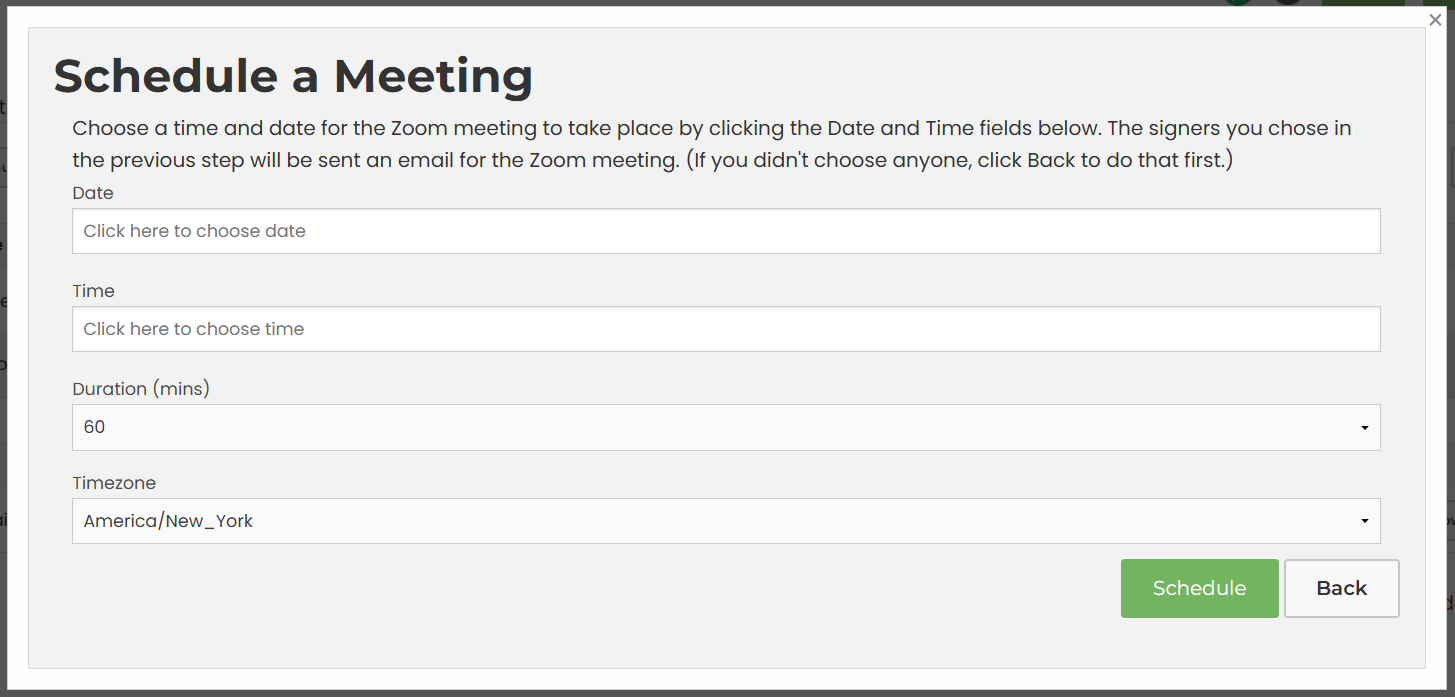
You must select the following:
- The Date - what day you want the meeting to take place
- The Time - when should the meeting take place
- Be sure to pay attention to AM and PM
- The Duration - about how many minutes should the meeting last
- You can select 15, 30, 45 or 60 minutes
- This will apply only to the calendar invite that goes out via email
- Your meeting can be as long or as short as you want, once you have started it as the notary and are hosting the Zoom meeting then you are in control of when it will end.
- The Timezone - this will be displayed in the email message along with date and time
- You should select your own timezone, and then help your clients to understand what time that will be for them, if they are somewhere else.
Once the meeting has been scheduled, an Information section will appear at the bottom of the Status screen. This area has buttons for "Reschedule" and "Info" to see the details of the current meeting, and a "start" button.
The notary and the signer will get an email that looks like this:
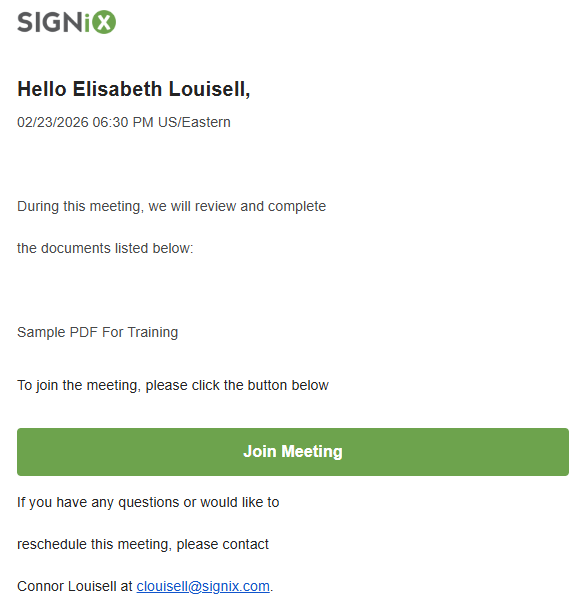
The invite should include the ability to add this meeting to a calendar, if one is connected to your email provider.
For example, in outlook, the email will have these types of buttons found at the top:

This may look different, depending on your email provider.
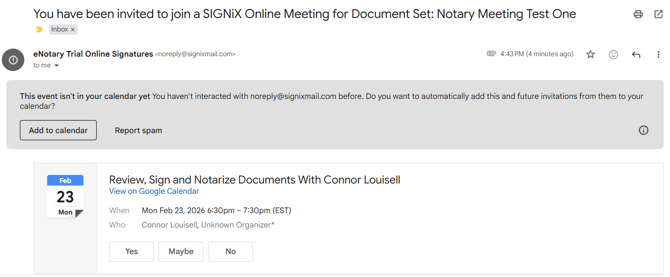
In Gmail, the message can look like this instead:
What to do if...
If the notary needs to reschedule the meeting, instructions can be found here.
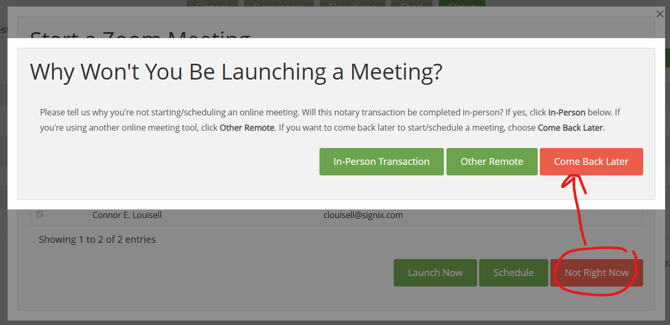
If the notary is not yet ready to schedule the Zoom meeting, then the prompt can be closed or the "Not Right Now" button can be used. The system will want to know why the notary isn't launching a meeting. The button for "Come back later" should be used so that the system will continue to prompt for a meeting as a helpful reminder to the notary.
When coming back later, either the prompt will appear on the Status screen automatically or the notary can use the "Launch Meeting" button to bring the schedule prompt back up.